Claude Code
• 6 min read
Introduction
Like every LLM, Claude Code suffers from context rot: the longer and noisier the context window gets, the worse the performance and the more tokens you burn.
A few habits that help:
- Use
/clear(wipes the whole context) or/compact(replaces it with a summary) whenever Claude finishes a task or gets stuck. A fresh start beats a polluted context. - Keep code files small and cohesive so they don’t bloat the context.
- Disable MCP servers by default and only load them when needed.
For design work, prompt Claude to create 10 different variations (e.g. HTML files), explore them quickly, then narrow down to a good one.
I used to ask Claude to write Markdown files, but HTML turned out to be better. It really helps to see a solution or an explanation visualised.
Commands
| Command | What it does |
|---|---|
/init | Create initial documentation of the repo in CLAUDE.md |
/clear | Clear context (do it if you are stuck) |
/compact <focus> | Summarize context, optionally saying what to keep (use when stuck or in a long session) |
/model | Select the model for the session (Opus: complex tasks, Sonnet: normal tasks) |
/batch | Execute tasks in parallel using agents |
/simplify | Refactor and remove redundancy |
/resume | Resume the last session |
/context | Show context usage |
/export | Save the current chat to the clipboard or a file |
/config | Recommended: disable auto-compact (it rarely helps) |
Shift + Tab | Plan mode: Claude asks clarifying questions before complex features |
Tab | Thinking mode, for complex reasoning |
Esc | Interrupt |
Esc Esc | Revert to a previous state |
Ctrl + G | Edit your prompt in your default text editor |
Custom commands
Create ~/.claude/commands/ and drop Markdown files in it, such as follow-up.md. Each file becomes a command you can call with /follow-up, which injects your custom instructions and saves you retyping them.
Skills
Skills automatically load relevant instructions based on the conversation’s context, which makes them a powerful way to customize your agents.
They are loaded lazily. Claude’s context only receives a brief name and description for each available skill upfront. When a task triggers a skill, Claude reads the full SKILL.md at runtime before writing any code or creating any files. This keeps the context lean while still following proven patterns when it matters.
Workflow
Explore → Plan → Code → Commit. Without this, most people jump straight to asking Claude to write code, which means more course-correcting later.
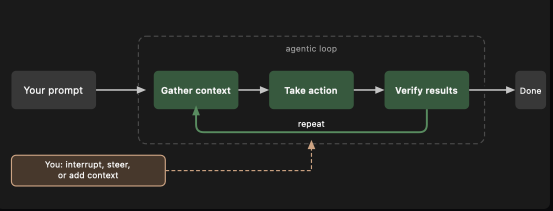
Under the hood the agent runs a loop: gather context, take action, verify the result, and repeat until done. You can interrupt, steer or add context at any point.
Plan
The fastest way to handle the first two steps is Plan Mode. In plan mode Claude can’t edit files; it only reads them to work out how it will tackle the implementation.
Press Shift + Tab until you see “Plan Mode” under the text input. Claude will read relevant files, run some web searches, and give you a plan of action. Review it and decide if it meets your criteria. If not, ask it to revise specific areas.
Code
Once the plan looks good, approve it and let Claude work through the list. You can choose whether Claude auto-accepts file edits or asks each time.
Claude will try to troubleshoot before calling the plan “finished”, but sometimes you’ll need to step in. That’s the benefit of Plan Mode: after execution you also have the context of how you got to the result, which helps guide Claude’s next decisions.
Commit
Once you’ve tested the changes and are happy, it’s time to push. Before committing, run a subagent code reviewer over your work. A subagent gets a fresh pair of eyes on the codebase and doesn’t carry the bias the main agent built up during the session.
Context window
When you approach the limit, the context window is compacted automatically. Compaction summarizes the important details and drops unnecessary tool-call results to free up space. Note that this can lose details.
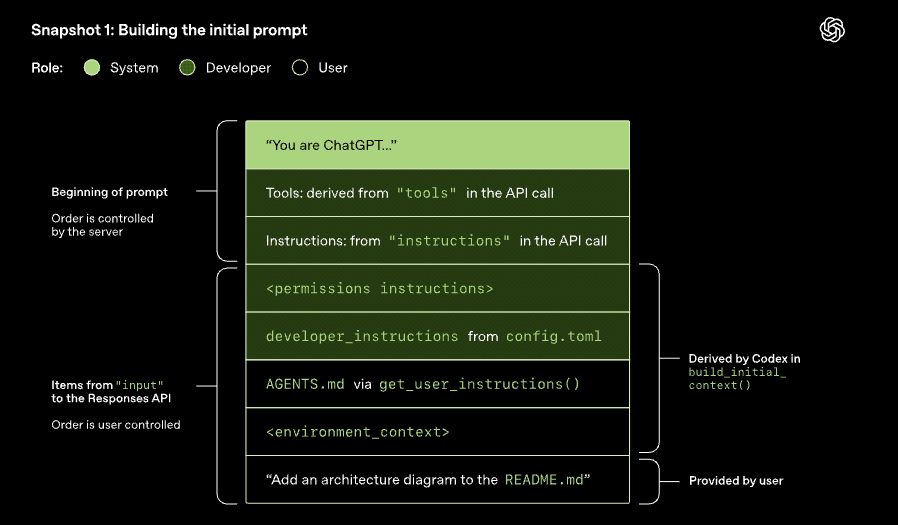
To see why context grows, here is how the prompt is built over a session. The first request is assembled from system instructions, tools, permissions, developer instructions, project instructions (AGENTS.md / CLAUDE.md), environment context, and finally your message.
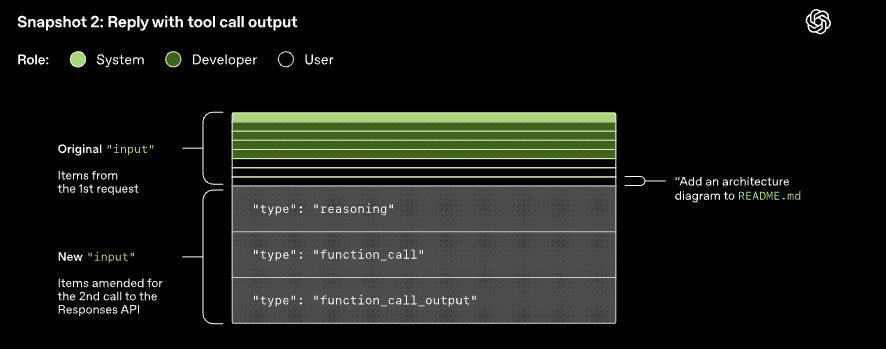
When the model calls a tool, the reasoning, the function call and its output are appended to the input, and the whole thing is sent again.
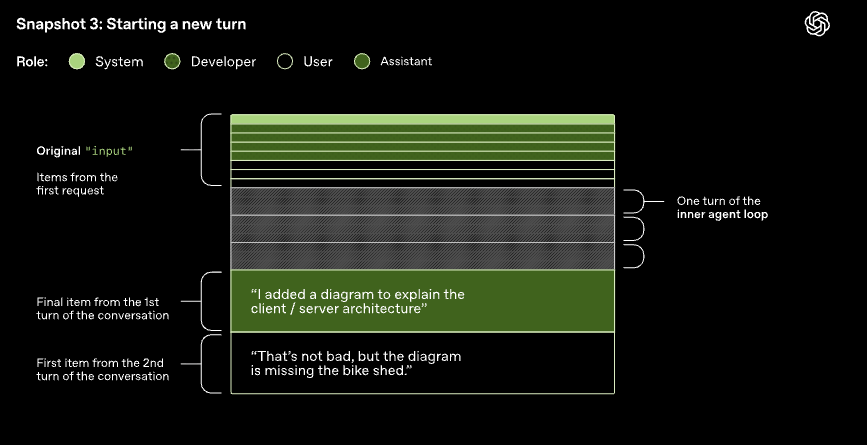
On a new turn, everything from the previous turn is kept and your next message goes at the end. Nothing is dropped until you compact or clear.
Rule of thumb
/compactwhen you’re deep in one feature, hitting the limit, and need to keep going. Keep the context relevant to the current feature./clearwhen you start a new feature, so the previous conversation doesn’t bias it. Anything Claude should remember across sessions belongs inCLAUDE.md, so it doesn’t have to rediscover it.
Other ways to save context
- Use subagents. They run in parallel with the main agent but have a completely separate context window. For tasks where you only need the answer, like “where are the authentication endpoints?”, a subagent does the work and returns just a summary.
- Manage your MCP servers. They load all their tools into context by default, even when unused. Turn off servers unrelated to the current project, or try Skills, which work similarly but don’t load everything upfront.
CLAUDE.md
Without a CLAUDE.md, Claude Code starts fresh every time. It has to re-explore your codebase, work out the dependencies, and figure out which features already exist. Sometimes it makes assumptions, which makes it harder to steer.
CLAUDE.md solves this. It’s a Markdown file at the root of your project that Claude Code reads automatically at the start of every session, and its contents are appended to your prompt. Think of it as an onboarding script for your codebase.
Tip: Save corrections to memory. If you keep correcting Claude, such as telling it to always use server actions instead of API routes, explicitly ask it to save that rule. Next time you open the project, it’ll know.
Subagents
A lot of the context window is consumed by tool calls exploring your codebase or running web searches, and what Claude finds there isn’t always relevant to the feature you’re building.
Subagents fix this. Claude spawns one for a task like “explore this codebase for me”. It runs in parallel with its own context window, does all the exploration, and returns only a summary to Claude. You get the answer without the whole journey cluttering your main context.
Subagents are defined in Markdown files with YAML frontmatter. The easiest way to start is to let Claude generate one:
/agents
Then select Create new agent. You’ll walk through choosing the agent’s scope, defining its purpose, selecting the tools it can access, and even picking a color for it.
Claude generates a name, description and prompt for the subagent. The description also tells Claude when to call it based on the prompts you give.